Overview
Every PhaseLock instance shows the shared session. Opening a different instance does not open a separate analysis; it shows the same connected lanes and results. This page explains what the window is telling you.
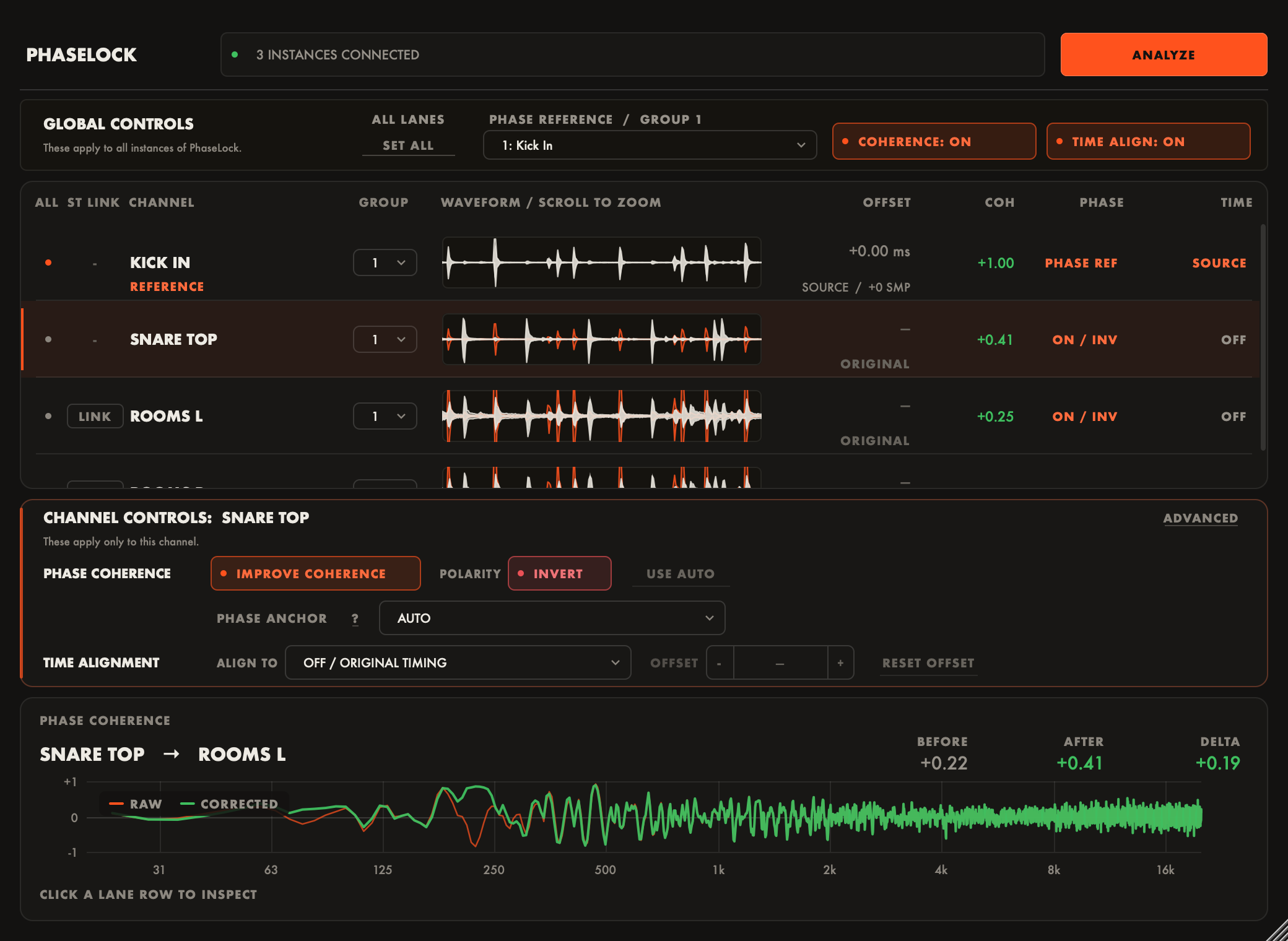
Session waveform lanes
Each lane row identifies its track or channel and shows its group, phase state, time state, measured values, and analyzed waveform. PhaseLock reads the track name from the host where the host provides one, including Pro Tools, Logic Pro, Cubase, Studio One, and Fender Studio Pro. Double-click a lane’s name to replace it with your own.
Click a lane to select it. The Channel Controls area then edits that lane, even if you opened the PhaseLock window from another track. You can also select several lanes and edit them together: see Selecting multiple lanes.
Phase and time states
The row reports Phase Coherence and Time Alignment separately. Typical states include:
- On: the process is enabled for that lane.
- Bypassed: the global control is bypassing the configured lane setting.
- Original Timing: the lane has no Time Reference and is not shifted.
- Reference: the lane is the Phase Reference for its group.
- Not Analyzed: the lane was not included in the current analysis.
- Over Budget: the required time offset exceeds the plugin’s alignment range.
Waveform and aligned preview
The source waveform shows what PhaseLock analyzed. The orange preview shows the result of time shift and polarity correction.
The orange preview does not show the all-pass phase correction, because an all-pass phase change cannot be represented reliably by a waveform envelope. Use the coherence graph and your ears to judge that part of the result.
The Phase Reference has no aligned preview because it is the anchor and does not move.
Zoom and pan
In the waveform area:
- Use the mouse wheel or trackpad to zoom.
- Drag to pan the shared viewport.
- Double-click to reset the view.
The viewport is shared across the lane rows, so the same moment stays visible on every track.
Tips
- The coherence graph and the ADVANCED panel always describe one lane: the focused lane, drawn with the brightest highlight. When several lanes are selected, the write controls apply to all of them while these read-only views keep following the focus.
- A completed analysis reports how many instances were aligned and the analyzed duration in the status line. If a lane you expected is missing, check its row for Not Analyzed before changing any settings.