Selecting multiple lanes
You can select several lanes and edit them together. The Channel Controls heading counts the selection, and every write control in it applies to all selected lanes. One lane in the selection is always the focus: the read-only views, the coherence graph and the ADVANCED panel, keep describing that lane.
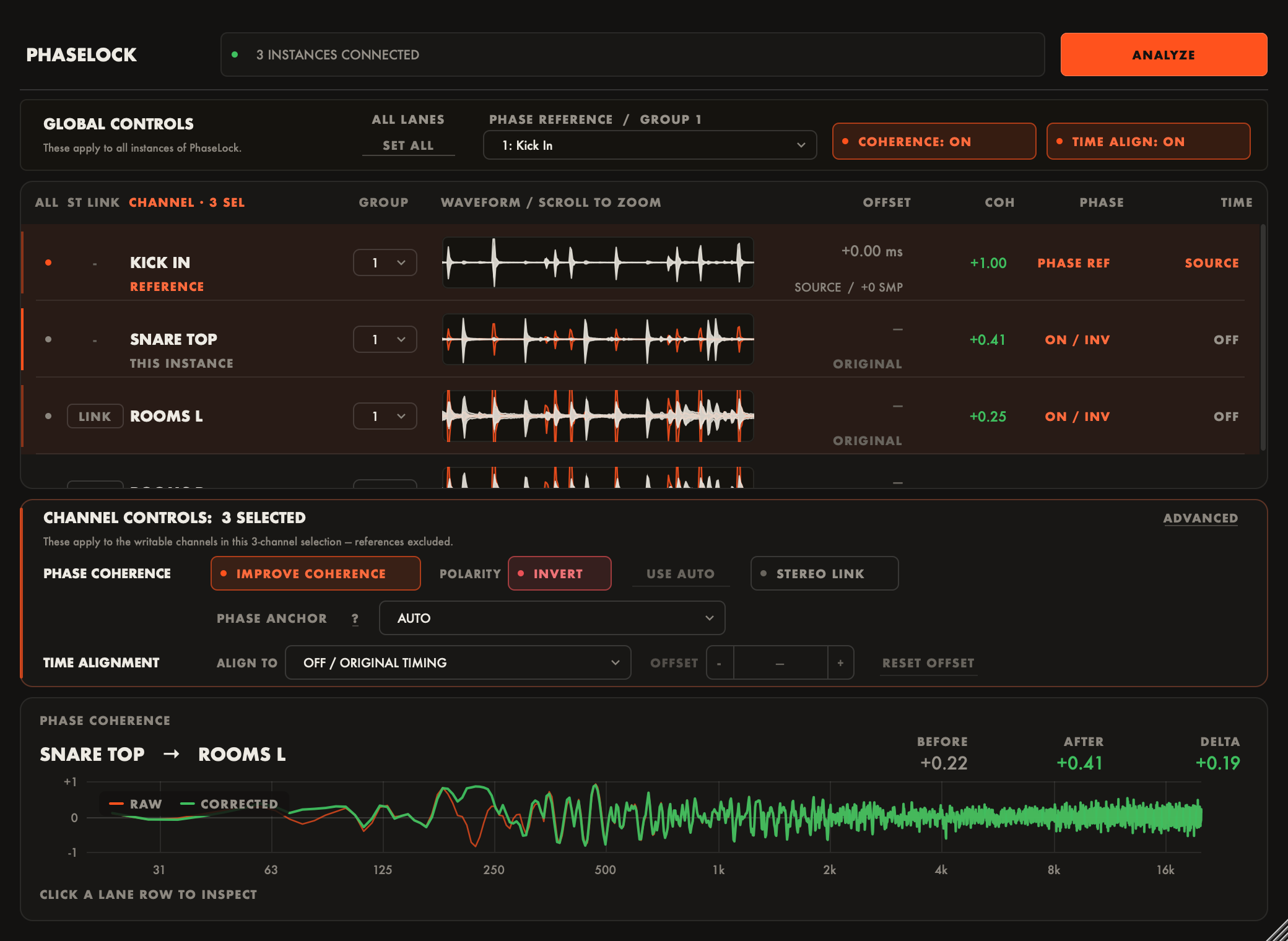
Selection gestures
- Click a lane to select it alone. This is the familiar single-lane behavior.
- Shift+click selects the range between the last plain click and this lane.
- Cmd+click (macOS) or Ctrl+click (Windows) adds or removes one lane.
- Cmd/Ctrl+Shift+click adds a range to the current selection.
- Drag across empty list area to sweep a rubber-band selection. Hold Cmd/Ctrl while starting the drag to add the swept lanes to the current selection.
- Cmd/Ctrl+A selects every lane in the session, across groups.
- Click the ALL cell in the list header to do the same without the keyboard.
- Escape, or a click on empty list area, collapses the selection back to the focused lane.
What a batch edit does
With several lanes selected:
- Toggles such as Improve Coherence, Invert, and Use Auto apply the change to every selected lane. When the members disagree, the control shows a dash instead of a tick. Clicking from that mixed state switches every member on; clicking again switches them off.
- Combos such as MODE, Align To, Phase Anchor, Group, and the MAX filter cap show MIXED when the members disagree. Picking a value applies it to every member.
- Group and MODE are instance-level settings, so they apply once per plugin instance in the selection.
Two rules keep a batch from doing something you would not do lane by lane:
- The group reference ignores per-lane settings, so batch writes skip it. It can still take part in instance-level changes such as Group.
- A pair in LINKED mode is treated as one unit. The correction mirrors to both sides, exactly as it does when you edit the pair on its own.
When a member cannot take a value, for example an Align To target that would create a circular chain for that particular lane, PhaseLock applies the value to the members that can take it and reports how many were skipped in the status line.
Offsets under a selection
The two offset controls follow their single-lane meaning:
- The - and + steppers move every selected lane by 1 ms relative to its own current offset. Each lane keeps its measured arrival time; they all shift together.
- Typing a value sets every selected lane to exactly that total offset. Use this when several lanes should land on the same correction.
When the selected lanes have different offsets, the value reads MIXED. Committing a typed value resolves it everywhere.
Setting every lane at once
The SET ALL button in the global bar opens a small panel with two session-wide controls: one points every lane’s Phase Anchor at a chosen value, the other points every lane’s Align To at a chosen value. It works on all lanes regardless of the current selection.
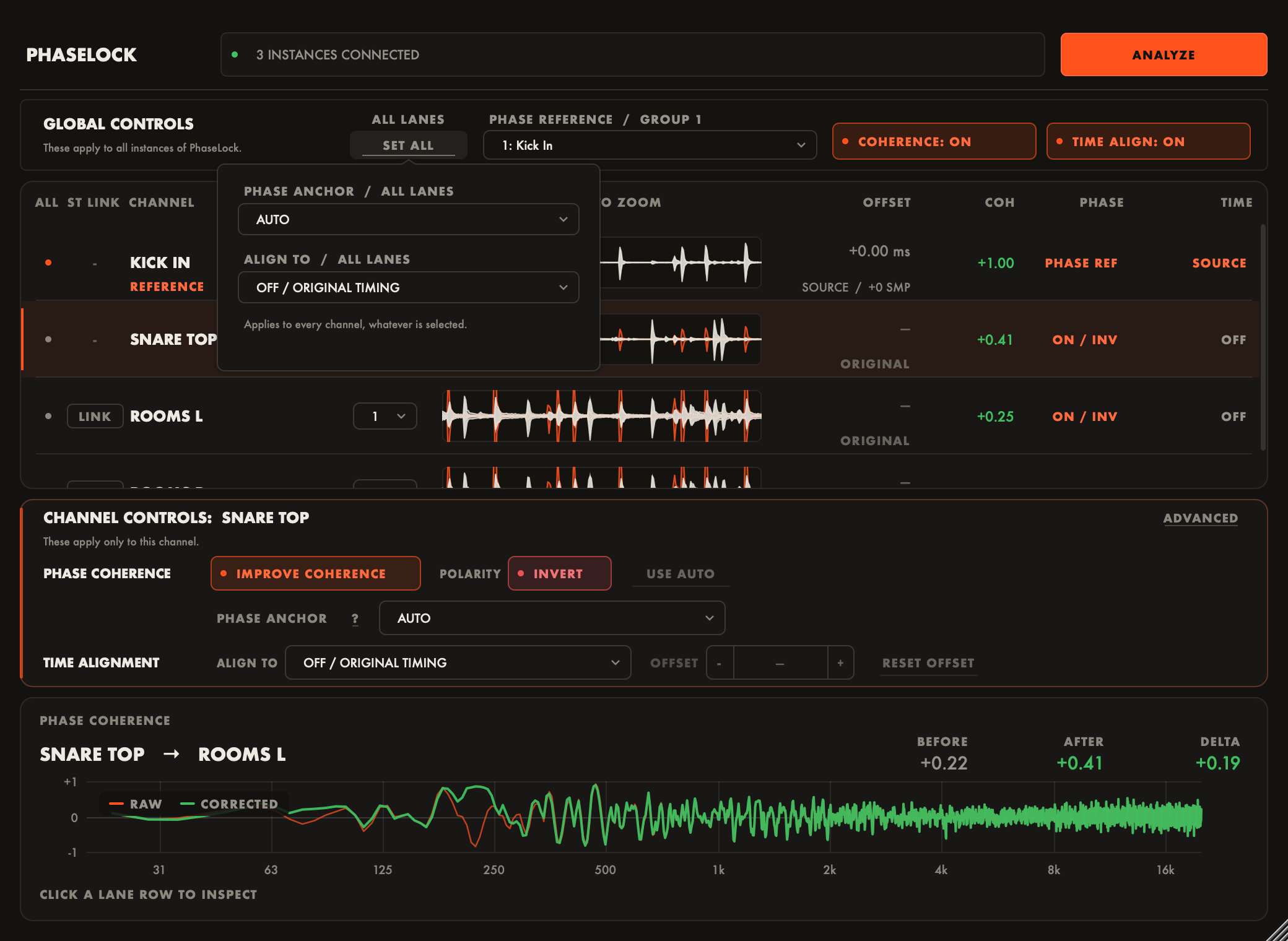
Each control shows the session-wide value when every lane agrees and MIXED when they differ.
Tips
- The lane list takes keyboard focus when you click it, so Escape and Cmd/Ctrl+A work. PhaseLock passes every other key back to the DAW. If your DAW stops responding to its transport keys while the PhaseLock window is focused, click the DAW window once. The ALL cell and the mouse gestures cover every selection task without the keyboard.
- Batch edits are settled as one change, so a large selection recalculates once rather than once per lane.
- Changing a row’s Group or MODE chip applies to the whole selection when that row is part of it, and only to that row when it is not.