The all-pass panel
Click ADVANCED in the Channel Controls to open a read-only panel describing exactly what PhaseLock is doing to the focused lane. It reads top-down: the time-domain correction first, then the phase-domain correction.
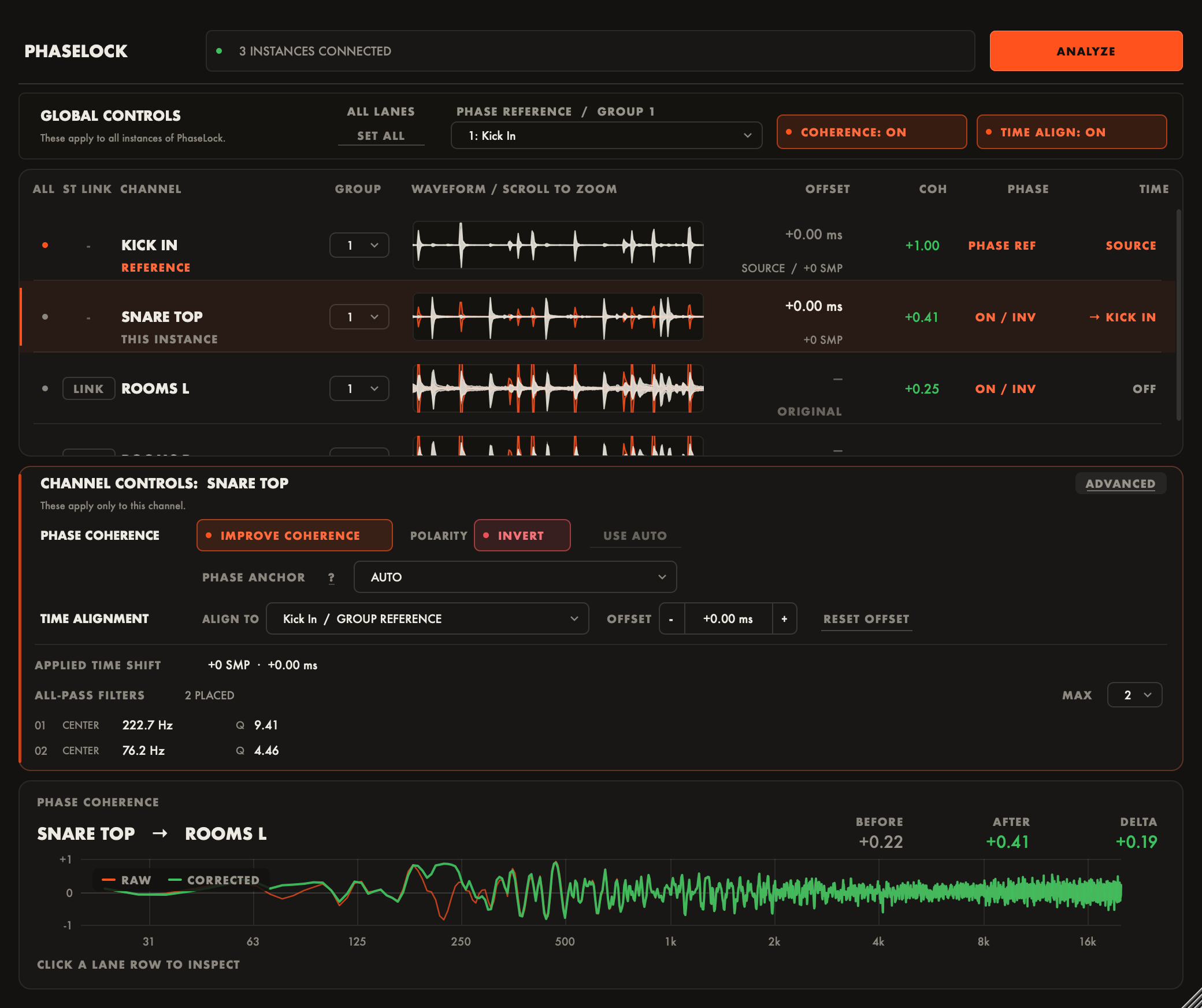
Applied time shift
The first row reports the lane’s total applied time shift in samples and milliseconds. Instead of a number you may see one of these states:
- Reference: this lane is the timing source and does not move.
- Original Timing: Time Alignment is off for this lane, so its natural timing is kept.
- Over Budget: the measured shift exceeds the 50 ms correction range, so the lane runs unprocessed.
- Not Measured: there is no analysis result for this lane yet.
All-pass filters
Below the time shift, the panel lists the all-pass filter sections the coherence fit placed on this lane, with a count such as 3 PLACED. Each row shows the section’s center frequency and Q.
Each section is one all-pass filter: it rotates phase around its center frequency and leaves the frequency magnitude unchanged. PhaseLock places a section only where its measurement predicts an improvement, so a lane that needs little correction gets few sections, and a lane that already combines well can get none.
The MAX cap
The MAX control beside the panel title caps how many sections the fit may place on this lane. Lower the cap when you want a lighter touch on a particular lane; the next fit uses at most that many sections, keeping the strongest ones. With several lanes selected, MAX applies to all of them.
Tips
- The panel follows the focused lane. Click through the lanes with the panel open to compare what the fit did across the session.
- An empty panel on a lane with Improve Coherence enabled means the fit found nothing worth correcting beyond polarity. That is a valid result, not an error.